
Manual1 min read
Import Dialog: Upload and Image Adjustments
Use the first import screens to prepare your image before conversion.
This part of the import dialog prepares your photo before pattern generation.
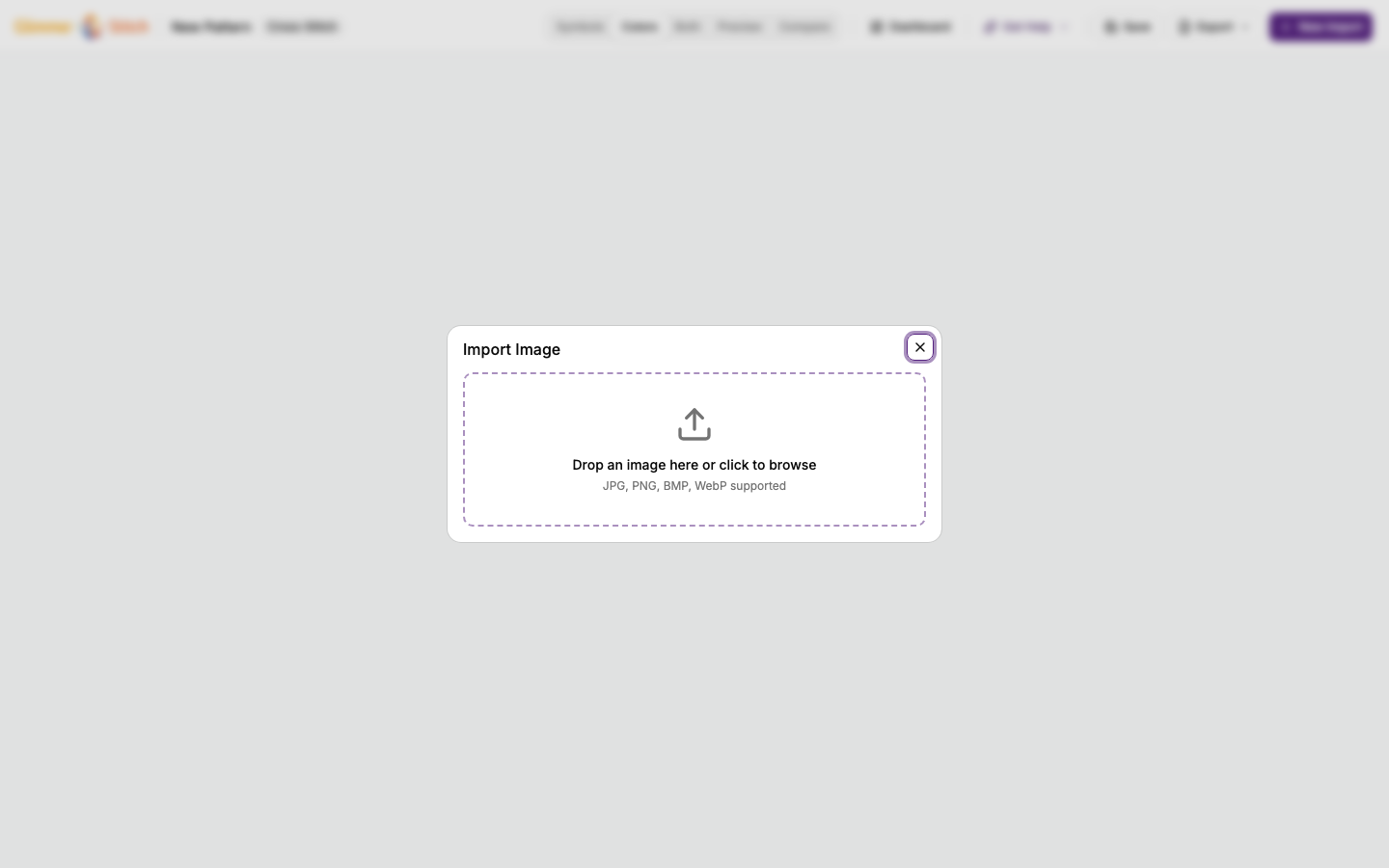
Step A: Upload
- Choose a clear photo.
- Keep your main subject centred if possible.
- Avoid very dark or blurry images.
 zoom
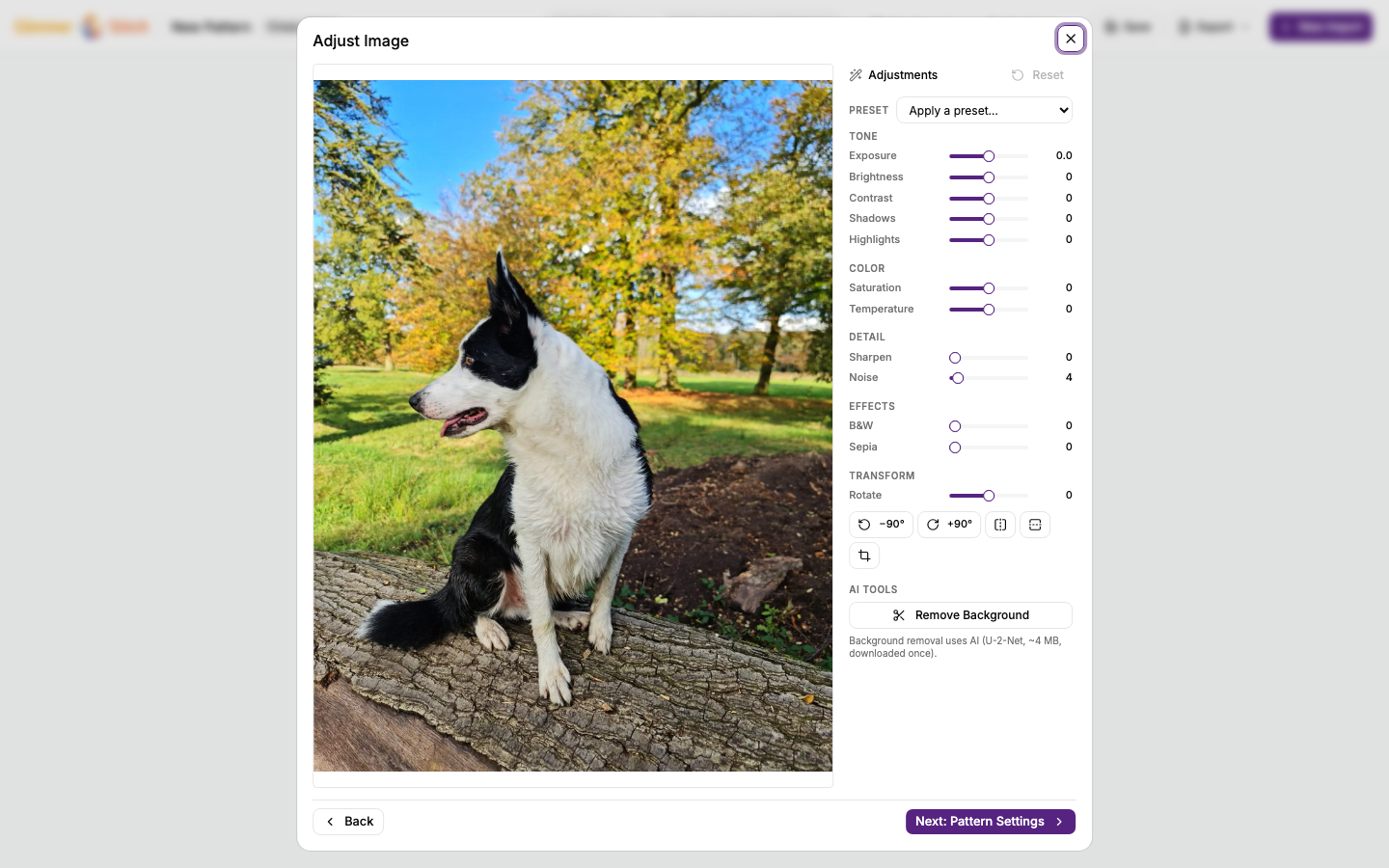
zoomStep B: Image adjustments
Use adjustments before converting to stitches:
- Crop: remove unwanted background and focus on your subject.
- Brightness/contrast: recover detail in dark or flat images.
- Background removal: useful for portraits or isolated objects.
 zoom
zoomPractical advice
- Do not over-adjust. Small changes are usually better.
- If facial details disappear later, return here and improve contrast before processing.
- If the result feels noisy, try cleaner cropping and fewer distractions in frame.